
How to use Berkelium Labs
This is a quick guide to get started with Berkelium Labs. First Launch Berkelium Labs.
Welcome Screen
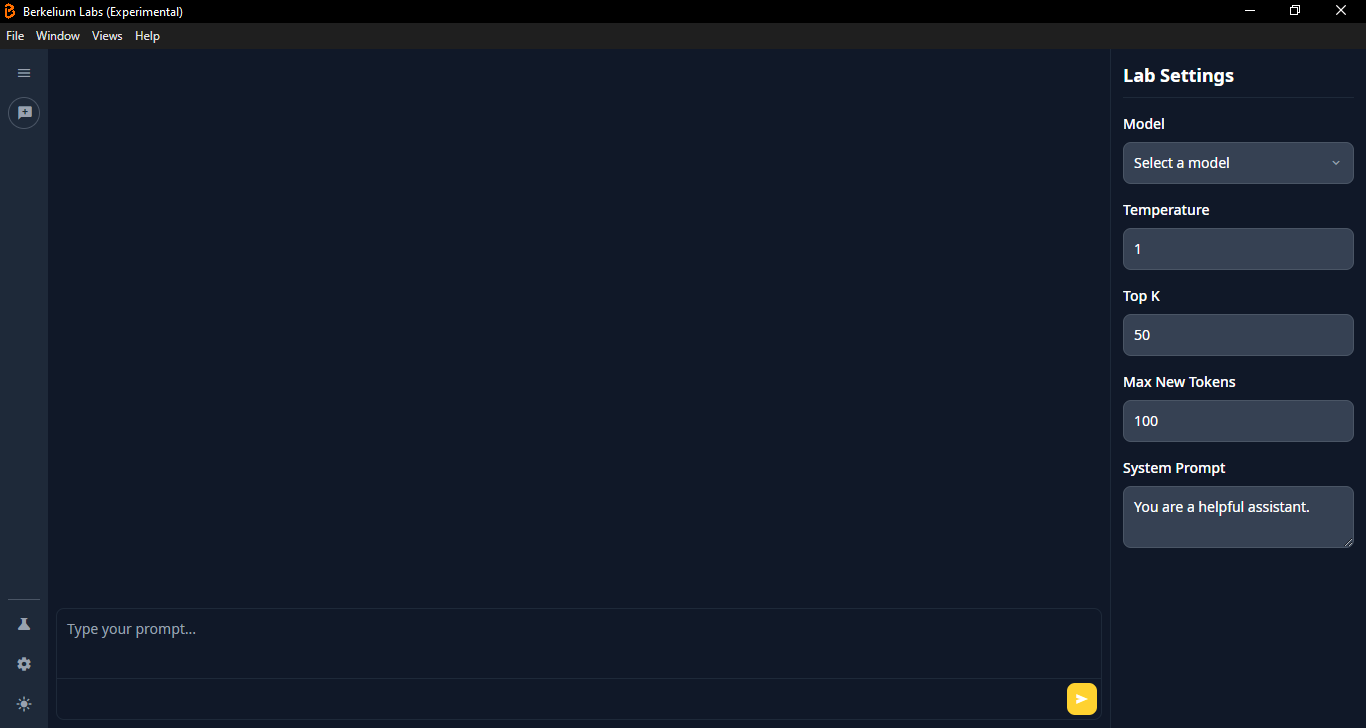
This is the initial screen you get. Before begin, you need to download models.
Download Models
Go to "Model Incubator", which is the place you can download models from HuggingFace. You can go to Model Incubator by clicking the "Glass Flask/Beaker" icon in the left navigation.
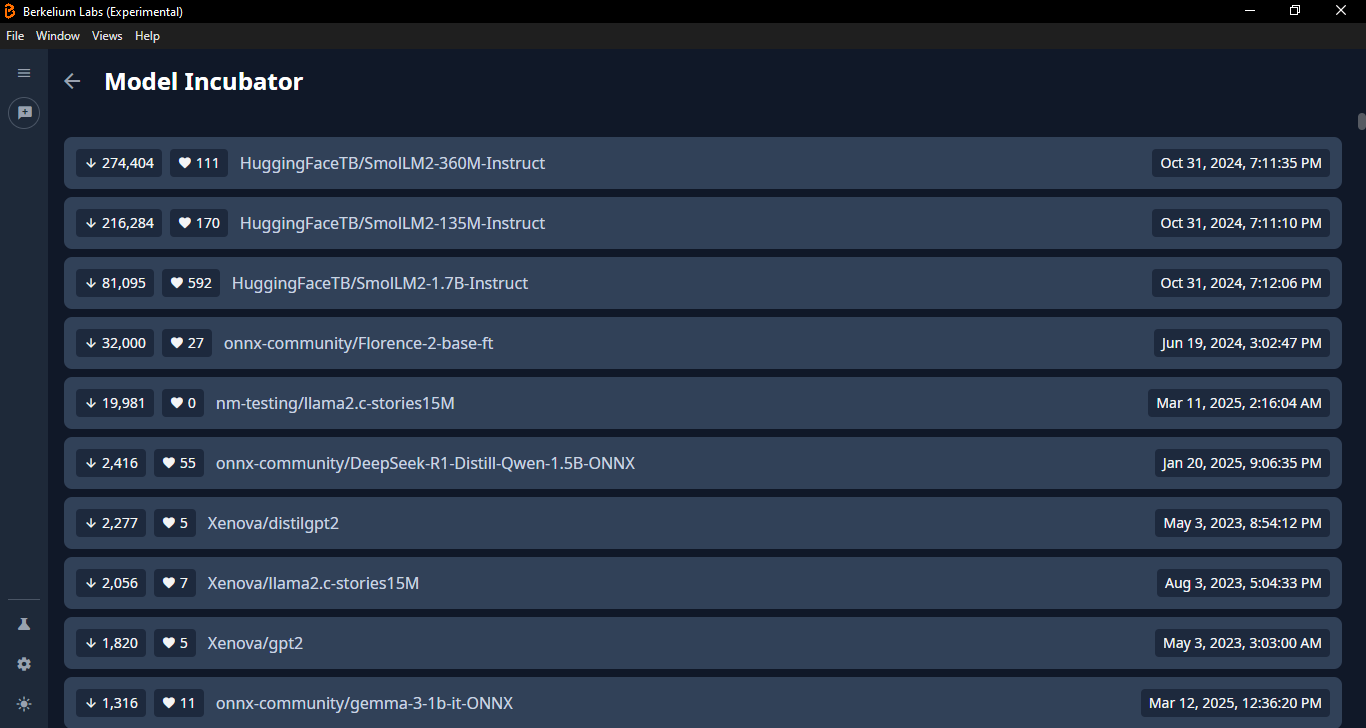
Once you visit the Model Incubator screen, it will show all available models.
Note: Currently it will show only "text-generation" models. Support for other models will be added in future.
Click a model to view the model card which will show details about the model. You can view full details of the model by clicking "More details...".
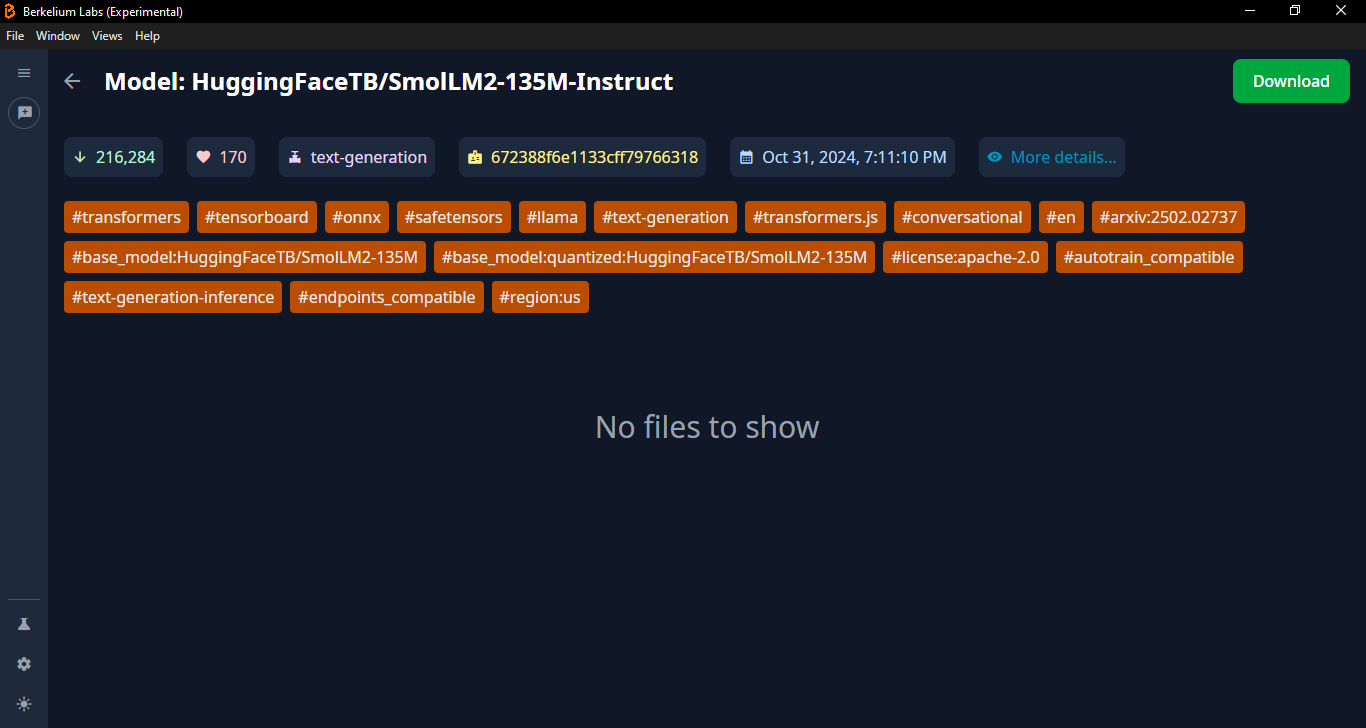
Click "Download" button to download the model. Download progress for each file associated with the model will be show up. Once the model is downloaded, you can go back to Chat screen either by clicking "New Chat" or by clicking back button.
Start Prompting
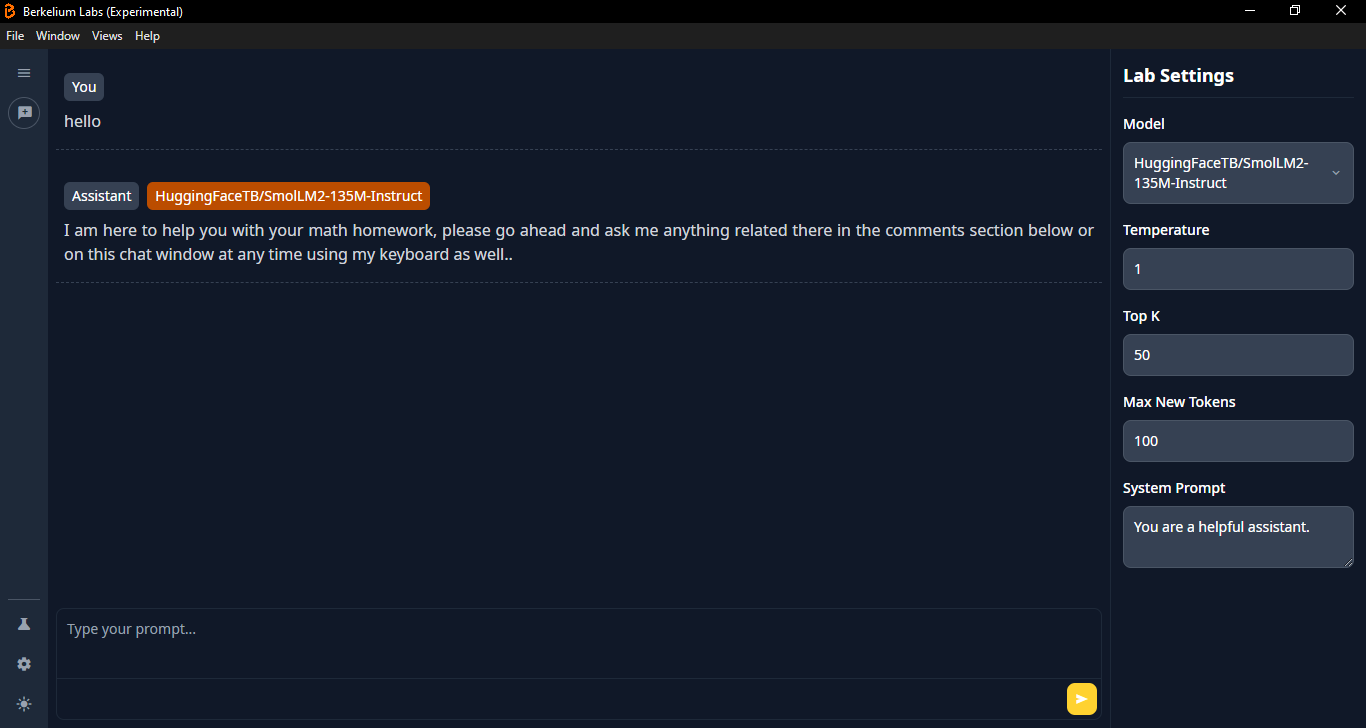
Once in the Chat screen, select a model from the model dropdown. Tweak other settings as you desire. Then start prompting and interacting with the model!